Merokalam's free QR Code Generator creates a QR code for your website, WiFi, phone number, email, or a message in about ten seconds, right in your browser, with no signup and no watermark. If you specifically need an official eSewa or Khalti merchant payment QR, that is a separate, provider-issued QR, and the section below explains exactly how to get one.
Free tool
Create Your QR Code
Open the generator, pick a type, enter your details, and download the PNG.
Create a Free QR Code Online
Merokalam's QR Code Generator supports six QR types: website URL, plain text, phone number, email, WiFi, and SMS. Pick the tab for what you need, fill in only the fields that show up for that type, choose a color and size, and click Generate QR Code. The image appears immediately, and you can download it as a PNG or copy it straight to your clipboard.
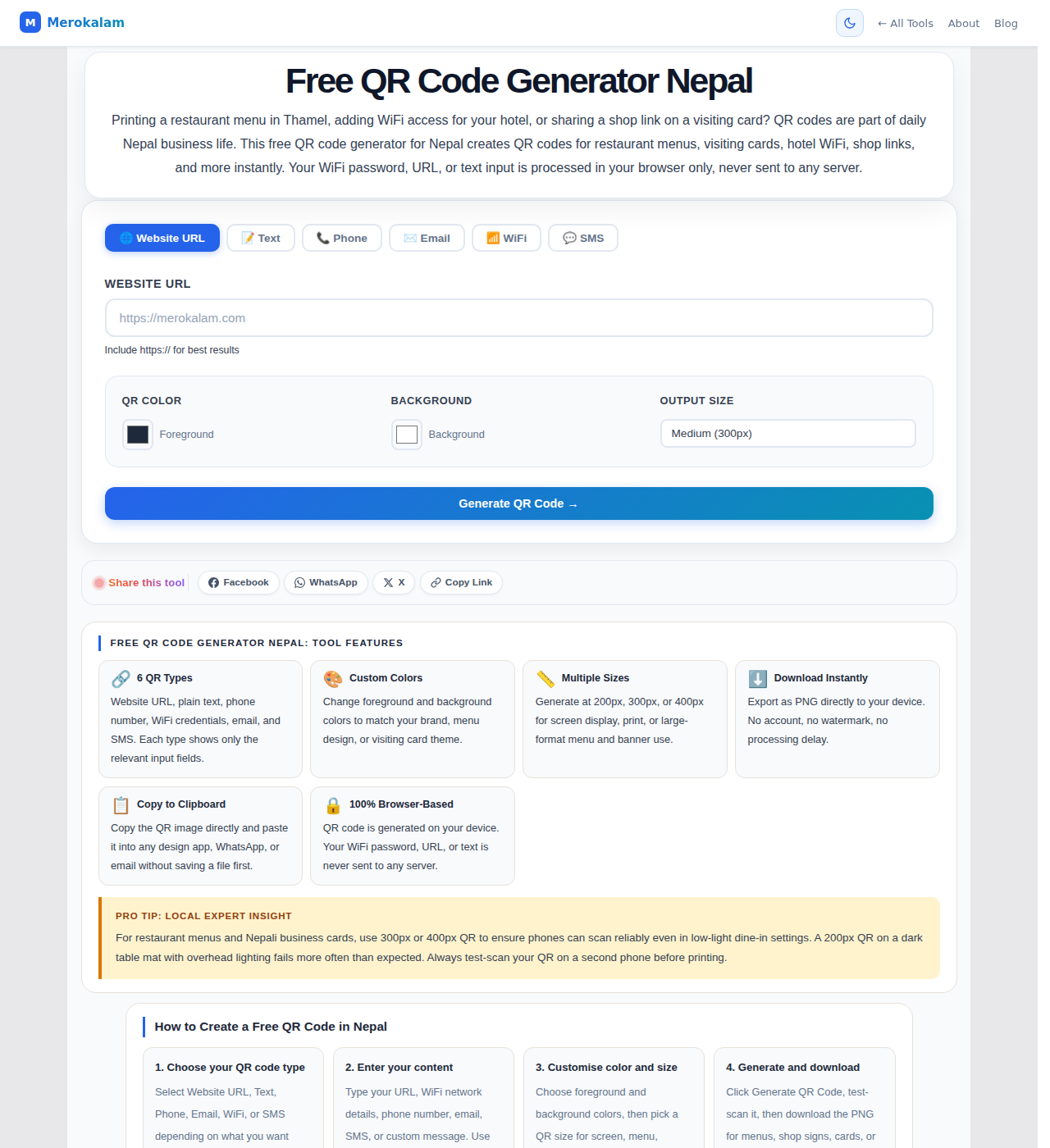
Merokalam's free QR Code Generator. Choose the type of information you want to encode, then fill in only the fields that appear for it.
Everything happens on your device. There is no account to create, no email to confirm, and no watermark added to the image you download. The tool also works fully offline once the page has loaded, because the QR code is drawn on a canvas in your browser rather than generated on a server somewhere.
What Is a QR Code?
A QR code is a square barcode that stores information in a grid of black and white squares instead of the thin vertical lines of a traditional barcode. That grid layout lets it hold far more data, enough for a full web address, a WiFi password, or a paragraph of text, and the three large squares in three of its corners let a camera figure out the code's orientation even if it is scanned at an angle or slightly crooked.
When you point a phone camera at one, the camera decodes the pattern back into the original text, link, or credentials and offers to open it. That is the entire mechanism: nothing is transmitted to the code's creator when someone scans it, and nothing needs to be "activated" beforehand. A static QR code, which is what this tool generates, works the moment it is printed or shown on screen.
What Can You Create With Merokalam's QR Generator?
Each of the six tabs shows only the fields it needs, so you never have to guess which box is for what. Here is exactly what each one does and a real example of the QR code it produces.
Website URL
Enter a full web address, including https://, and the QR code opens that page directly in the visitor's browser when scanned. This is the type to use for a menu hosted online, a Google Maps location link, a Facebook page, or your own website.
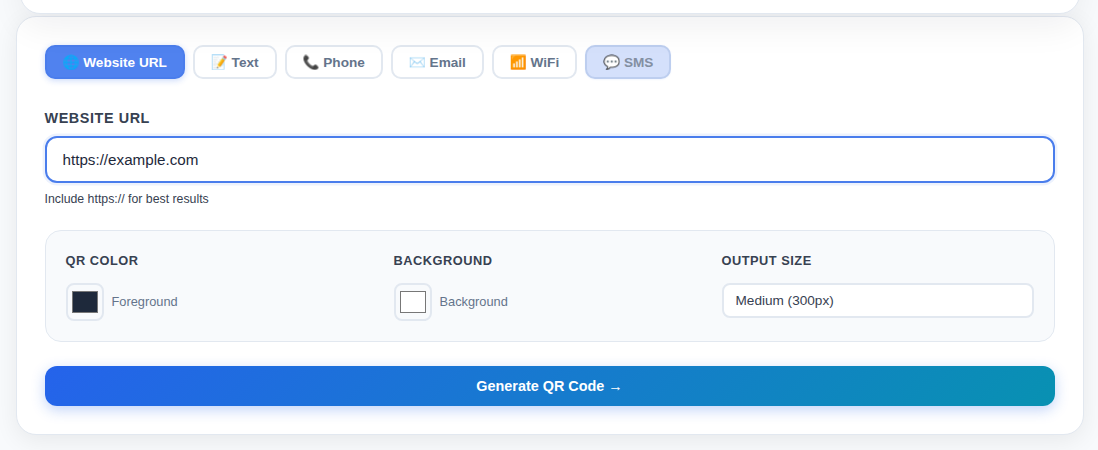
Type the full address including https:// for the most reliable scan.
Text
Type or paste any plain text, including Nepali Unicode. This is useful for a short welcome message, an address written out in full, or instructions that do not need to link anywhere. The example below encodes हाम्रो पसलमा स्वागत छ। and scans correctly on any modern phone.
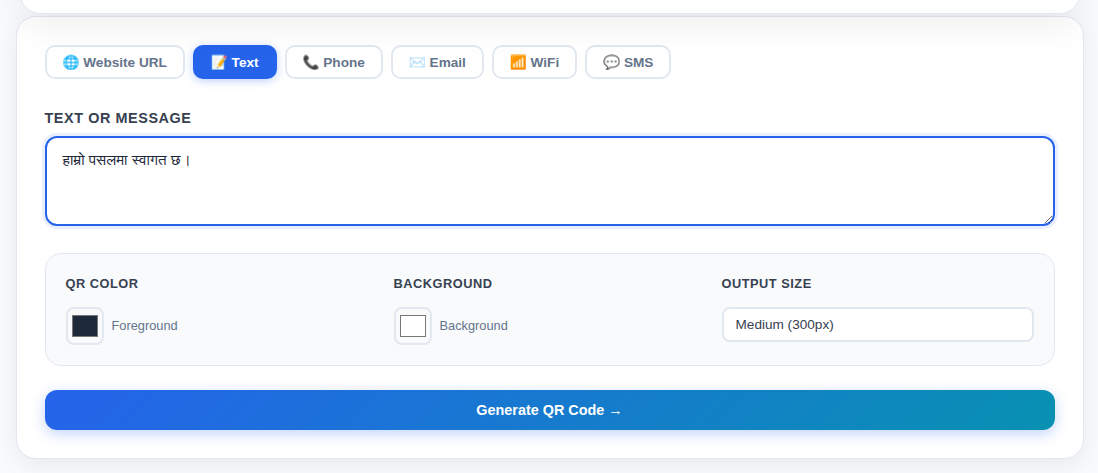
Nepali Unicode text is encoded and decoded correctly, no transliteration needed.
Phone
Enter a phone number with the country code. Scanning the code opens the visitor's phone dialer with the number already filled in, ready to call. Always include +977 before a Nepal mobile number so it also works correctly for someone scanning from outside the country.
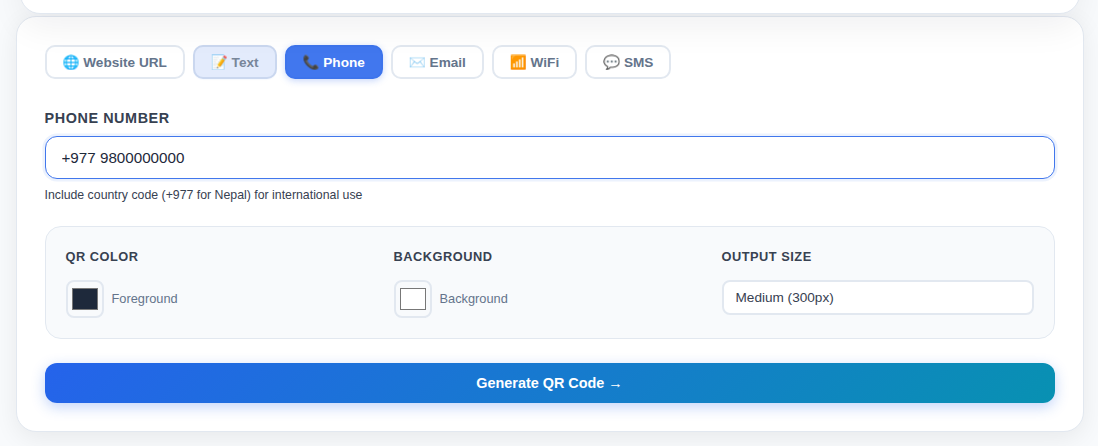
A fictional example number. Include the country code for a Nepal mobile number.
Enter an email address and, optionally, a subject line. Scanning opens the visitor's email app with a new message already addressed to you and the subject pre-filled, saving them from typing your address correctly by hand.
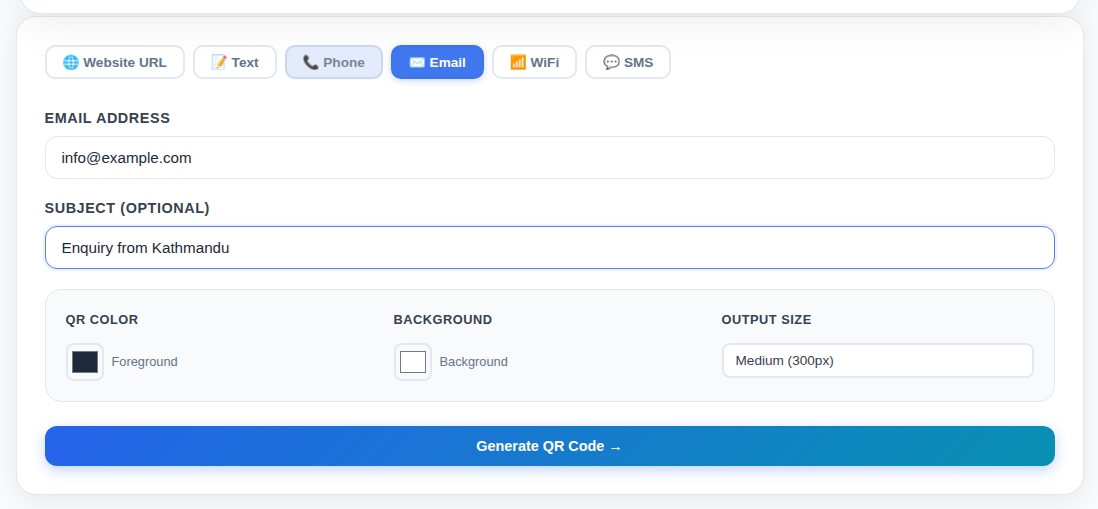
The subject line is optional but saves the sender a step.
WiFi
Enter the network name, password, and security type. Scanning the code connects the guest's phone automatically, no typing required. This is especially useful for cafés, restaurants, hotels, and offices where guests ask for the WiFi password several times a day.
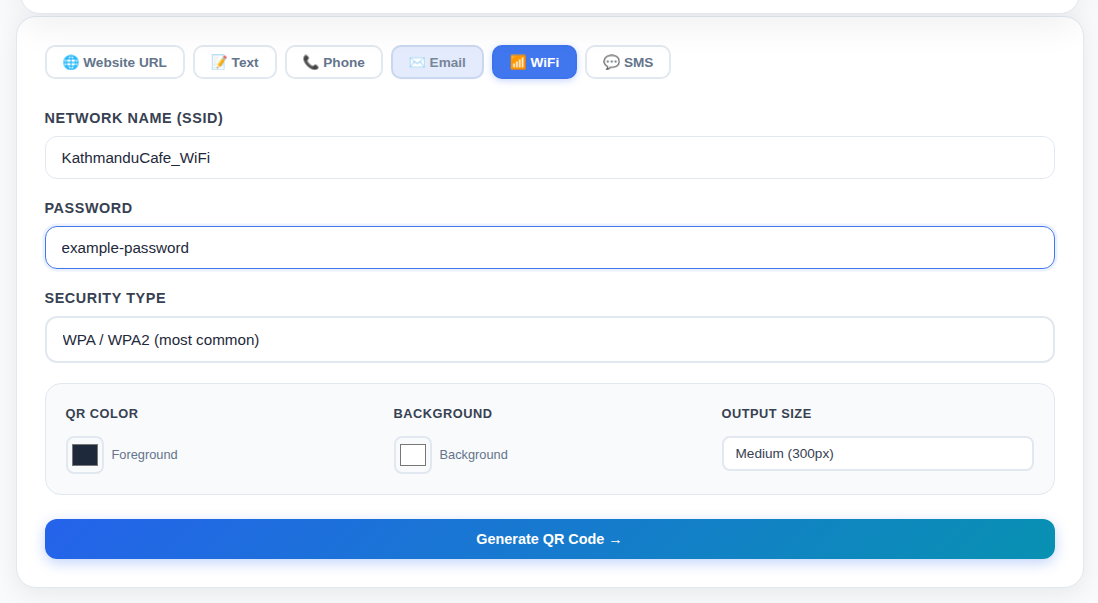
Choose WPA/WPA2 for almost any modern router; that field must match your actual network's security type exactly.
SMS
Enter a phone number and, optionally, a pre-filled message. Scanning opens the visitor's messaging app with the number and message ready to send. This suits an order line, a reservation request, or a quick feedback channel.
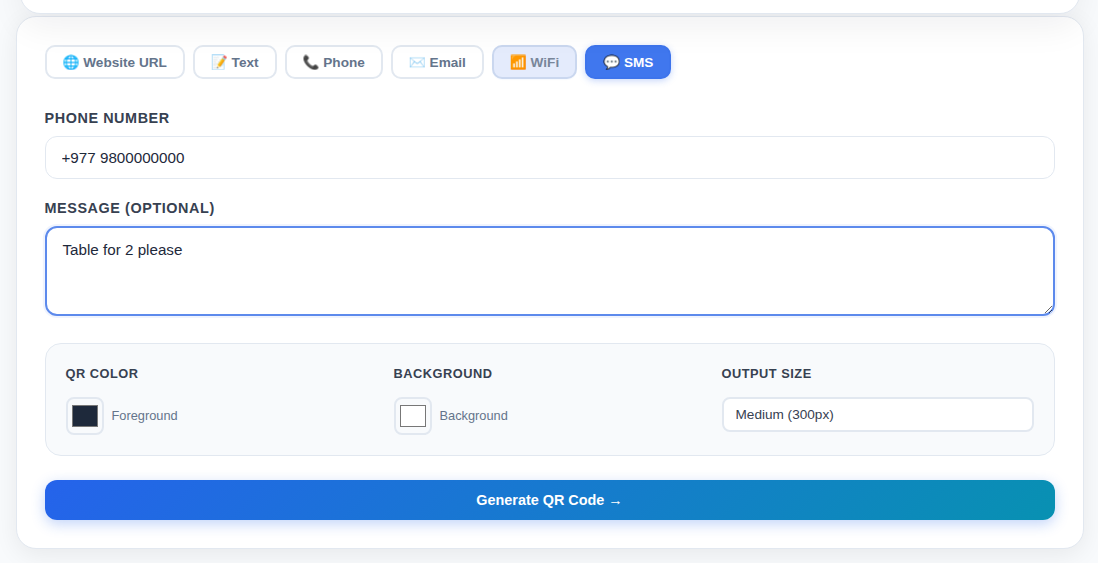
The message field pre-fills the text but the customer still has to press send.
How to Create a QR Code Step by Step
The full process from opening the tool to a printable file takes well under a minute.
Live Example: Create a QR Code for a Nepali Shop
Here is the exact process applied to a real scenario. Say you run a small restaurant called Kathmandu Momo House and want a QR code that opens your menu page.
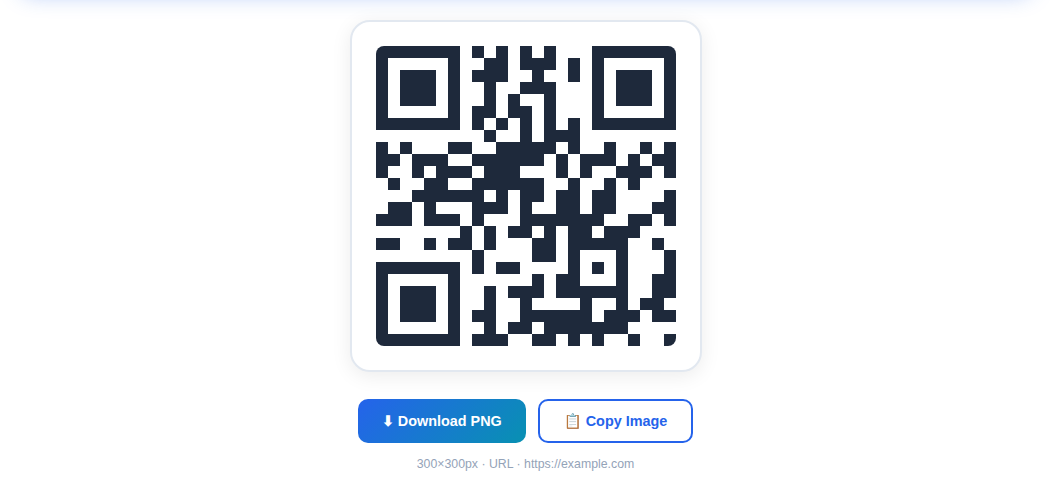
The generated QR code with the Download PNG and Copy Image actions.
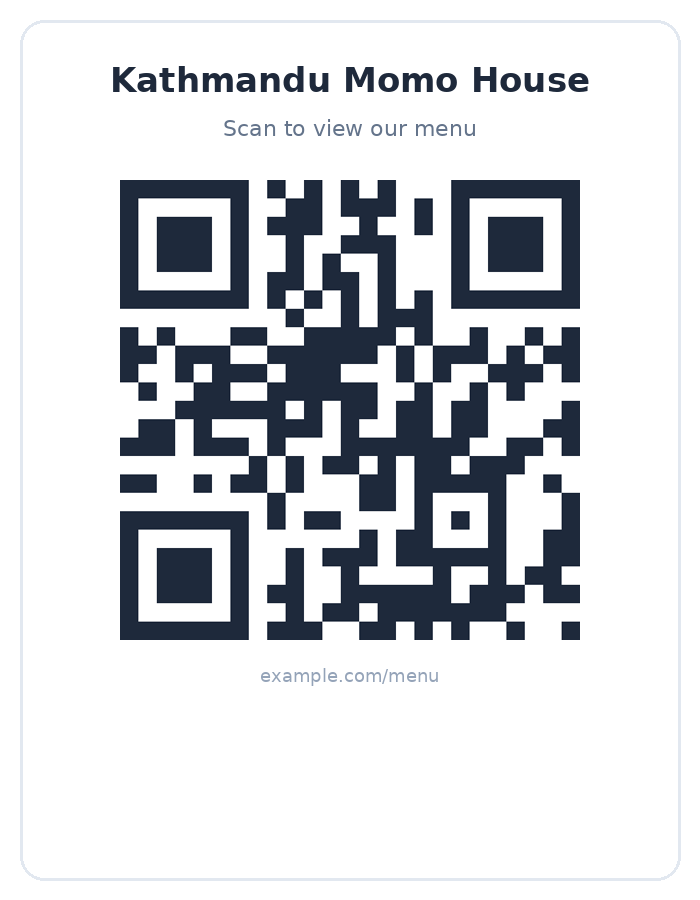
The same QR code placed on a simple table sign. This is the shape most Nepali restaurant table tents take.
That is the entire loop: input, generate, download, print, scan. The next section repeats the same process for a WiFi network instead of a website link.
Can You Create an eSewa or Khalti Payment QR With a Free QR Generator?
No, not one that a wallet app will accept for payment. A general-purpose QR generator, including this one, is not automatically the same thing as an official merchant payment QR.
Merokalam's generator creates general-purpose QR codes for a website, plain text, phone number, email, WiFi, and SMS. Official payment QR codes contain merchant account and payment-routing information that eSewa's and Khalti's own apps recognise, and they are issued directly by those providers after a merchant registration step, not generated on a third-party website.
According to eSewa's own published process, a business applies for a Business QR from inside the eSewa app: log in, go to Popular Services, select Business QR Request, choose New QR Registration or a standee replacement, then submit your business PAN ID, mobile number, bank details, and business address for verification. There is no separate fee beyond a refundable minimum balance hold, and a physical QR standee typically arrives within 15 to 30 days in city areas.
Khalti's merchant QR works the same way in principle: a business registers directly through Khalti's own merchant payment page, rather than generating a QR code on any third-party tool, general-purpose or otherwise.
| What you want | Use |
|---|---|
| Website QR | Merokalam QR Generator |
| Text or message QR | Merokalam QR Generator |
| Phone number QR | Merokalam QR Generator |
| Email QR | Merokalam QR Generator |
| WiFi QR | Merokalam QR Generator |
| SMS QR | Merokalam QR Generator |
| Official eSewa merchant payment QR | eSewa app, Business QR Request |
| Official Khalti merchant QR | Khalti merchant registration |
eSewa QR vs Khalti QR vs Generic QR
All three look like an ordinary black-and-white square, which is exactly why the distinction gets confusing. Here is what each one is actually for.
eSewa Business QR
Issued by eSewa after you submit a Business QR Request in the app with your PAN ID and business details. Customers scan it inside the eSewa app to pay you directly. Not something a general QR generator can produce.
Khalti Merchant QR
Issued by Khalti after merchant registration through Khalti's own payment page. Customers scan it with the Khalti app's Scan & Pay feature. Also not something a general QR generator can produce.
Merokalam Generic QR
Created instantly, free, with no registration. Encodes a website, text, phone number, email, WiFi, or SMS. Cannot be scanned by a wallet app for payment because it contains no merchant account data.
How to Use QR Codes in Your Shop
A QR code is useful for almost any Nepali small business well beyond payments. Here are the practical, non-payment uses that come up most often.
Not every one of these is, or needs to be, a payment QR. Most Nepali small businesses get more everyday use out of a website, WiFi, or contact QR than a payment one, and those are exactly the types this generator makes.
Free tool
Make a QR Code for Your Business
Website, catalogue, contact page, or booking link, all in the same generator.
QR Codes for Restaurants and Cafés
A menu QR code is one of the highest-value uses of this tool for a Nepali restaurant or café. Create a Website URL QR pointing to your menu page, then place it on every table, at the entrance, and on takeaway packaging so customers can browse without waiting for a printed menu to be handed over.
The one limitation to know: this generator makes a static QR code, meaning the destination URL is encoded directly into the pattern. If your menu link changes later, for example you move to a new ordering page, you need to generate and print a new QR code rather than editing the old one. Keeping a stable, permanent URL for your menu avoids this entirely.
QR Codes for WiFi
A WiFi QR code is one of the most practical uses of this tool and is not related to payments at all. Guests scan it once and connect automatically, which saves a café, hotel, or office from repeating a long password out loud dozens of times a day.
Here is the same live-example format applied to a café's guest network.
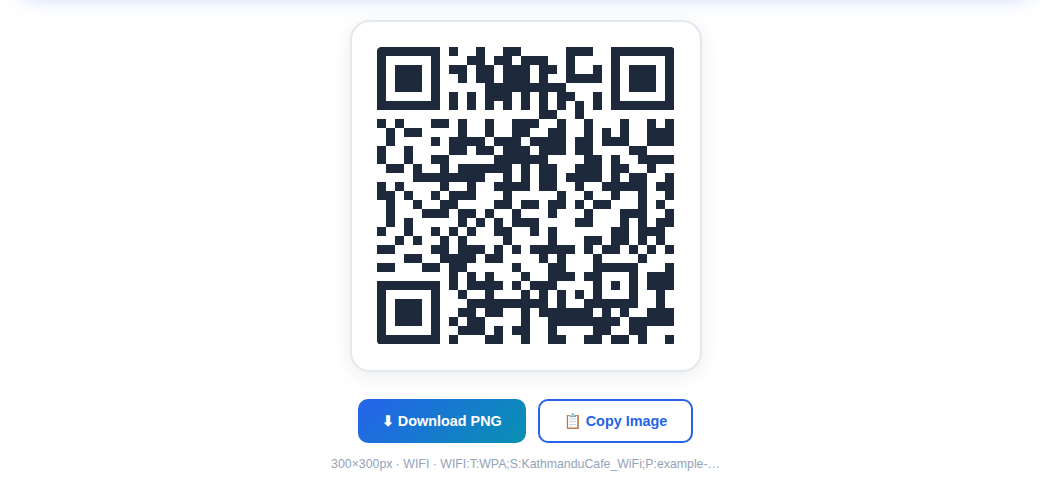
A WiFi QR code generated from a fictional network name and password. Never publish a real network's actual credentials in a screenshot or example.
If your router settings ever change, generate a fresh WiFi QR code with the updated password rather than reusing the old printed one, since a static QR code cannot update itself.
QR Codes for Business Cards
A QR code does not have to replace a business card, but it pairs well with one. Add a small QR code linking to your website, portfolio, contact page, phone number, or a profile page, and it saves the person you handed the card to from typing a long URL by hand later. Keep it small but leave a clear white margin around it so it stays scannable at business-card size.
How to Print a QR Code
How large a QR code needs to be printed depends entirely on how far away someone will stand when scanning it, not on a single universal minimum size. The scanning distance, how complex the underlying data is, print quality, contrast, lighting, and the scanning phone's camera quality all affect the result.
Small counter sign
Scanned from close range. A readable size with generous white space around the code works well; the 300 or 400px export is usually enough.
Table
Scanned from arm's length while seated. Size it large enough that a customer does not need to lean in or squint.
Banner
Scanned from further away. Scale the print size up proportionally with the scanning distance; the 600px export is the right starting point.
Business card
Very close range, but very little space. Keep the code itself small but never crop into its white border.
Poster
Never place the code somewhere people cannot physically stand close enough to scan it, such as high above eye level or behind a barrier.
How to Make Sure Your QR Code Scans
A QR code that fails to scan is worse than no QR code at all. These seven checks are what actually separate a reliable printed QR code from a frustrating one.
One implementation detail worth knowing: this generator always uses medium-level (Level M) error correction, meaning the code can still scan even if roughly 15% of it is damaged, smudged, or obscured. That is a solid default for menus, signs, and stickers. If you plan to place a logo in the center of the code afterward using separate image-editing software, keep it small, no more than about 20% of the total area, and always test-scan the result, since this generator does not offer a higher error-correction mode built in.
Color Customization: What to Avoid
Merokalam's generator supports separate foreground and background colors. Customization should never come at the expense of a code that actually scans.
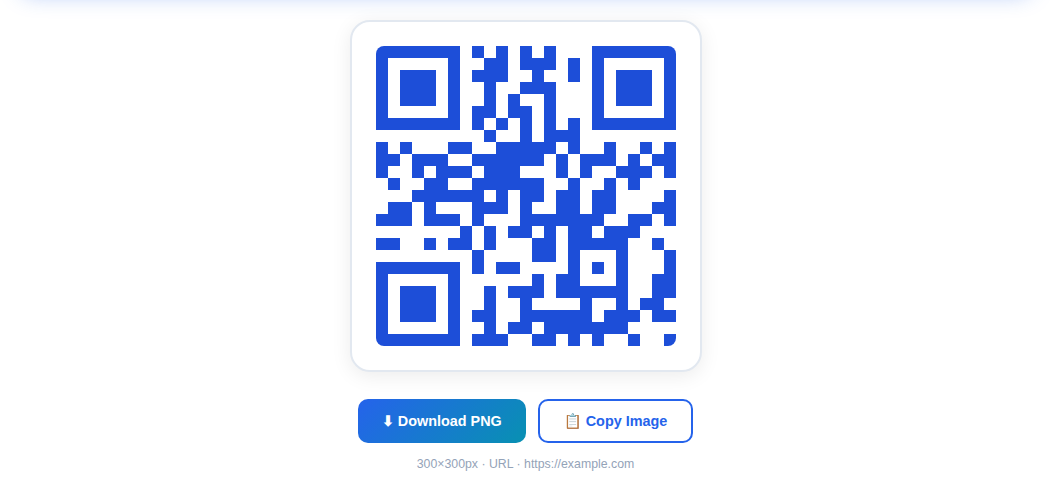
A dark, saturated foreground on a white background keeps strong contrast and scans reliably.
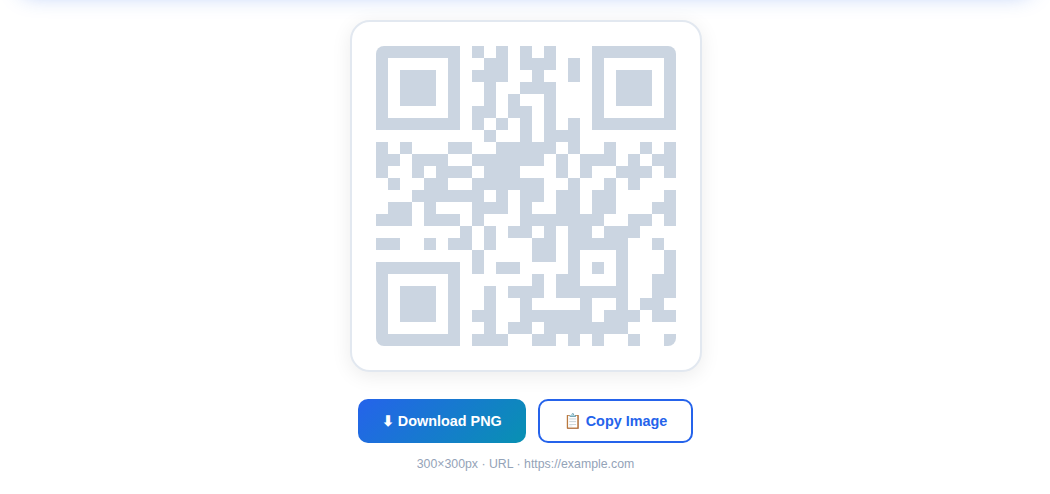
A light foreground on a white background has too little contrast. Many phones will struggle or fail to scan this.
As a rule: dark foreground on a light background is safe. A light QR pattern on a white background, low-contrast color pairs in general, or placing the code over a busy image behind it are all risky and can cause real scanning failures, especially on older phones or in low light.
Static vs Dynamic QR Codes
It helps to understand the difference before deciding what you need.
Static QR
The information is encoded directly into the pattern. No account required, permanent, and free. The tradeoff is that if the destination content changes, you need a new QR code rather than an edit to the old one. This is what Merokalam's generator produces, and it is the right choice for most shop, WiFi, and contact-sharing use cases.
Dynamic QR
Points to a short redirect link controlled by a separate service, so the destination can be changed later without reprinting, and scans can sometimes be tracked. This usually comes with an ongoing subscription and a dependency on that service staying online. It makes sense for large campaigns that genuinely need to update content or track analytics after printing.
QR Code Safety and Payment Scams
A QR code can send someone to a website or open a payment flow just as a normal link can, so the same basic caution applies.
A QR code is not inherently trustworthy just because it looks official. Check where it actually leads before entering any information.
Check the merchant name, amount, and recipient details shown by your payment app before authorizing anything.
Scammers have been known to paste a fraudulent sticker over a legitimate merchant QR code in public places. Shop owners should occasionally check that their printed QR standee has not been tampered with or covered.
None of this means QR codes are unusually dangerous. It means they deserve the same basic attention as any link or payment request, nothing more, nothing less.
How Customers Use a QR Code
For a general QR code, the customer experience is simple: open the camera, point it at the code, and tap the notification or link that appears.
For a payment QR specifically, eSewa's published process is: open the eSewa app, tap the QR Code Scanner icon, allow camera access if prompted, point the camera at the merchant's QR code, enter the payment amount and any remarks, then confirm and authenticate with a fingerprint or MPIN. Khalti's published Scan & Pay process is similar: open the app, select Scan & Pay, point the camera at the merchant's QR code to auto-fill the transaction details, enter the amount, choose a transaction purpose, review, and confirm.
QR Code Troubleshooting
Most QR problems fall into a small number of predictable causes.
Check for a size that is too small for the distance, poor contrast, a distorted or stretched image, a missing quiet zone around the code, poor lighting, a damaged print, or an overly complex design behind it.
Re-check the original information you entered before generating it. The QR code only ever contains exactly what was typed into the field.
Double-check the SSID spelling, the password, and that the security type selected matches the router's actual setting exactly.
Try a larger print size, stronger contrast, better lighting, a clean unobstructed surface, and print from the original downloaded PNG rather than a screenshot of it.
QR Code Checklist Before Printing
A short check before sending anything to print catches almost every common mistake.
Which QR Type Should You Choose?
A quick way to decide, if you are still not sure which tab to use.
| You need | Choose |
|---|---|
| Share a website | Website URL |
| Share a restaurant menu | Website URL |
| Share WiFi for guests or customers | WiFi |
| Let people call you | Phone |
| Let people email you | |
| Share a message or address | Text |
| Pre-fill an SMS | SMS |
| Accept an official merchant payment | Apply through eSewa or Khalti directly, not a general QR generator |
Frequently Asked Questions
A QR code generator turns information you type in, such as a website address, WiFi password, or phone number, into a scannable square barcode. Anyone can then scan it with a phone camera to open that information instantly.
Yes. Generating, previewing, and downloading a QR code costs nothing, requires no account, and does not add a watermark.
Yes. There is no signup, login, or email required anywhere in the process.
Yes. Select Website URL, type your full link including https://, and generate.
Yes. Select WiFi, enter your network name and password, choose the correct security type, and generate. Guests scan it and connect automatically.
Yes. Select Phone and enter your number with the country code. Scanning opens the dialer with your number already filled in.
Yes. Select Email, enter the address and optionally a subject line. Scanning opens a new message already addressed to you.
Yes. Select Text and type or paste Nepali Unicode directly. The code encodes it correctly and any modern phone scanner will display it.
Not a payment-ready one. This generator makes general-purpose QR codes, not eSewa's official merchant payment QR. To accept eSewa payments, apply for a Business QR through the eSewa app under Popular Services.
Not a payment-ready one, for the same reason. Khalti's merchant QR is issued after registering directly with Khalti.
No. A payment QR encodes merchant account details a wallet app recognises for a transaction. A general QR code encodes a link, text, WiFi credentials, or contact details, not payment routing information.
Yes. Download the PNG and print it on a menu, sign, sticker, or business card. Use 400px or 600px for anything printed.
It depends on scanning distance. A table tent scanned from close range works well around 3 to 4cm printed; a poster meant to be scanned from further away needs to be proportionally larger. Test the printed size before a full run.
Usually low contrast, a size too small for the distance, a missing white border, or a blurry print. Test the exact printed copy before running a full print job.
Yes, using separate foreground and background color pickers. Keep strong contrast between them so it still scans reliably.
No. The information is built directly into the pattern, so it keeps working indefinitely. If the destination content changes, generate a new QR code rather than editing the old one.
No. The generator runs in your phone or computer's browser and works on both, no app required.
Yes. Modern iPhone and Android camera apps detect and scan QR codes automatically without a separate scanner app.
Whether you need a QR code for your website, WiFi, phone number, restaurant menu, business card, or another piece of information, the process is straightforward: choose the QR type, enter the information, generate the code, test it, then print or share it. For general-purpose QR codes, from a website link to a WiFi password, Merokalam's generator does the job free and instantly. For an official payment QR that a wallet app can accept, apply directly through eSewa or Khalti.
Ready to Create Your QR Code?
Free, no signup, no watermark. Generate it in your browser and download the PNG in seconds.